Apolosign digital calendar: sizes, setup, and how dual modes work
This article contains affiliate links. We may earn a commission if you buy through them.
Picture your week: overlapping pickups, practice times that shift, and a roommate swapping shifts. Phone alerts help you, but the rest of the house misses the memo. The Apolosign digital calendar puts a single, always‑visible view on the wall so everyone can see today’s events, chores, and dinner plan at a glance.
What the Apolosign digital calendar is and who it’s for
If you want a shared schedule that lives where people actually look—kitchen, hallway, entryway—Apolosign builds a smart display designed for households and group living. It combines a purpose‑built calendar interface with a customizable dashboard you can tailor for chores, meals, notes, and more. For busy homes, a visible screen can reduce back‑and‑forth texts and make the day’s plan easier to negotiate.
Two modes in one display is the core idea: a focused Calendar Mode for shared schedules and routines, and an Android OS mode for dashboards and widgets. If you live solo or already live inside phone calendars, a dedicated wall device may be unnecessary—but for families and roommates, a central screen can be worth the space.
No monthly subscription required is a straightforward value point. The calendar’s included features—events, chores with points, to‑dos, rewards, and photo screensaver—are offered without an ongoing fee, so the decision becomes about fit, size, and placement rather than another bill.
Shared wall display for households
Households that benefit most share one problem: everyone keeps plans in different places. In Calendar Mode, the screen shows today’s events and lists clearly, so a child can check practice time, a roommate can see a shift change, and whoever cooks can glance at meals. Because the display sits in a common area, people don’t need to unlock a phone to stay aligned.
A simple value: no monthly subscription
If you’re comparing options, monthly fees can add up quickly. Apolosign lists its features as included, so there’s no subscription meter running in the background. That makes it easier to start with a smaller model and upgrade later if the shared view proves useful.
How dual modes work: Calendar Mode and Android OS
The device runs in two experiences you can switch between without changing hardware. That flexibility shapes how you’ll use it day to day: Calendar Mode for simple, predictable visibility; Android OS for more customization.
Switch modes without changing devices keeps the learning curve manageable—one screen, two ways to organize.
Calendar Mode for shared schedules
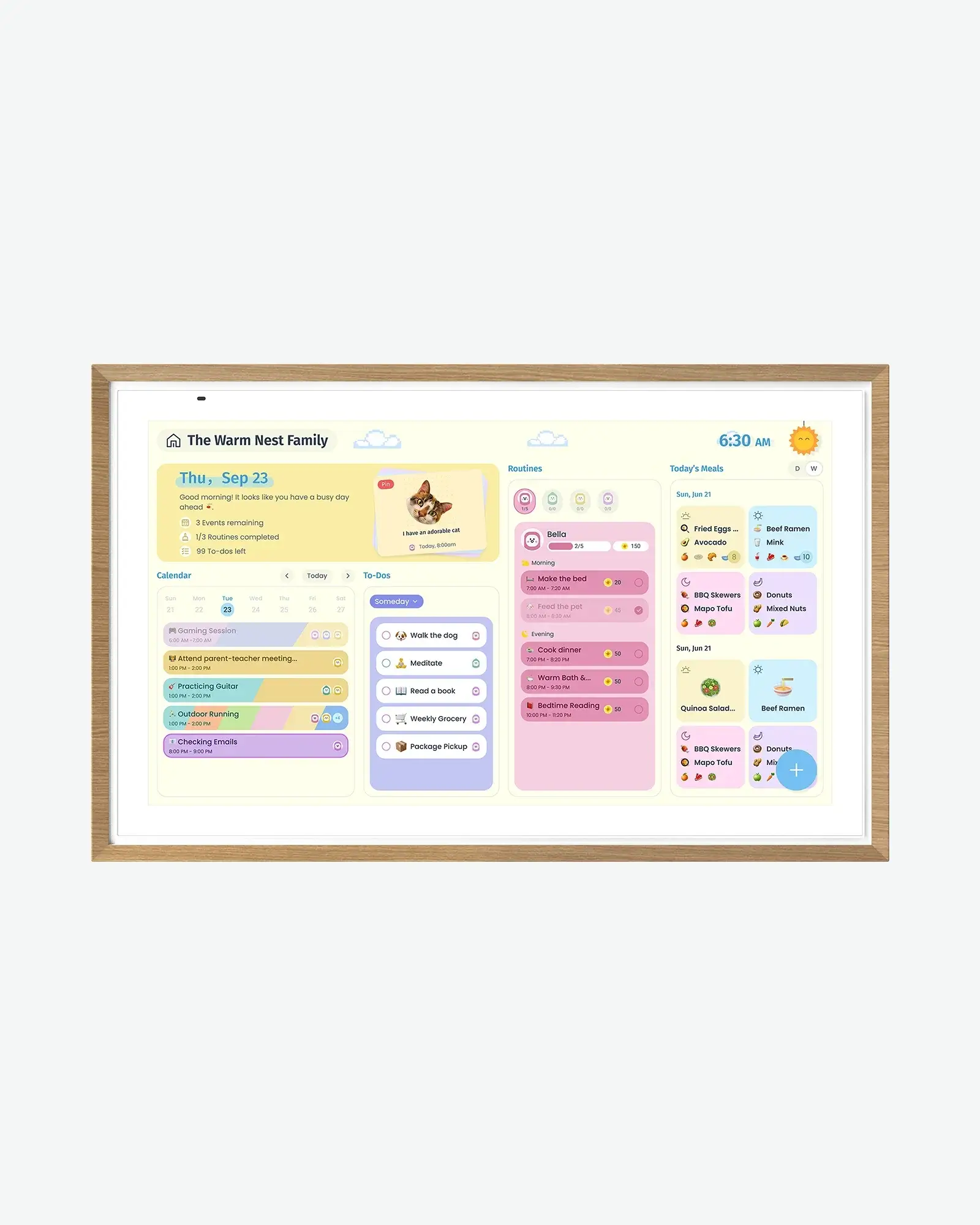
Calendar Mode concentrates on shared schedules. Official materials describe multi‑calendar syncing, chore planning with points, rewards, to‑dos, meal planning, and family stickies. The practical effect is a clean, readable board where the time, today’s events, recurring routines, and lists appear without app clutter. If you’re the person who wants everyone to see the same plan at 7 a.m., this is likely your default.
Voice prompts are supported through Google Assistant, which can be handy hands‑free in the kitchen. Used sparingly, that can help set timers, add a quick item, or answer a “what’s next?” without touching the screen.
Android OS for widgets and apps
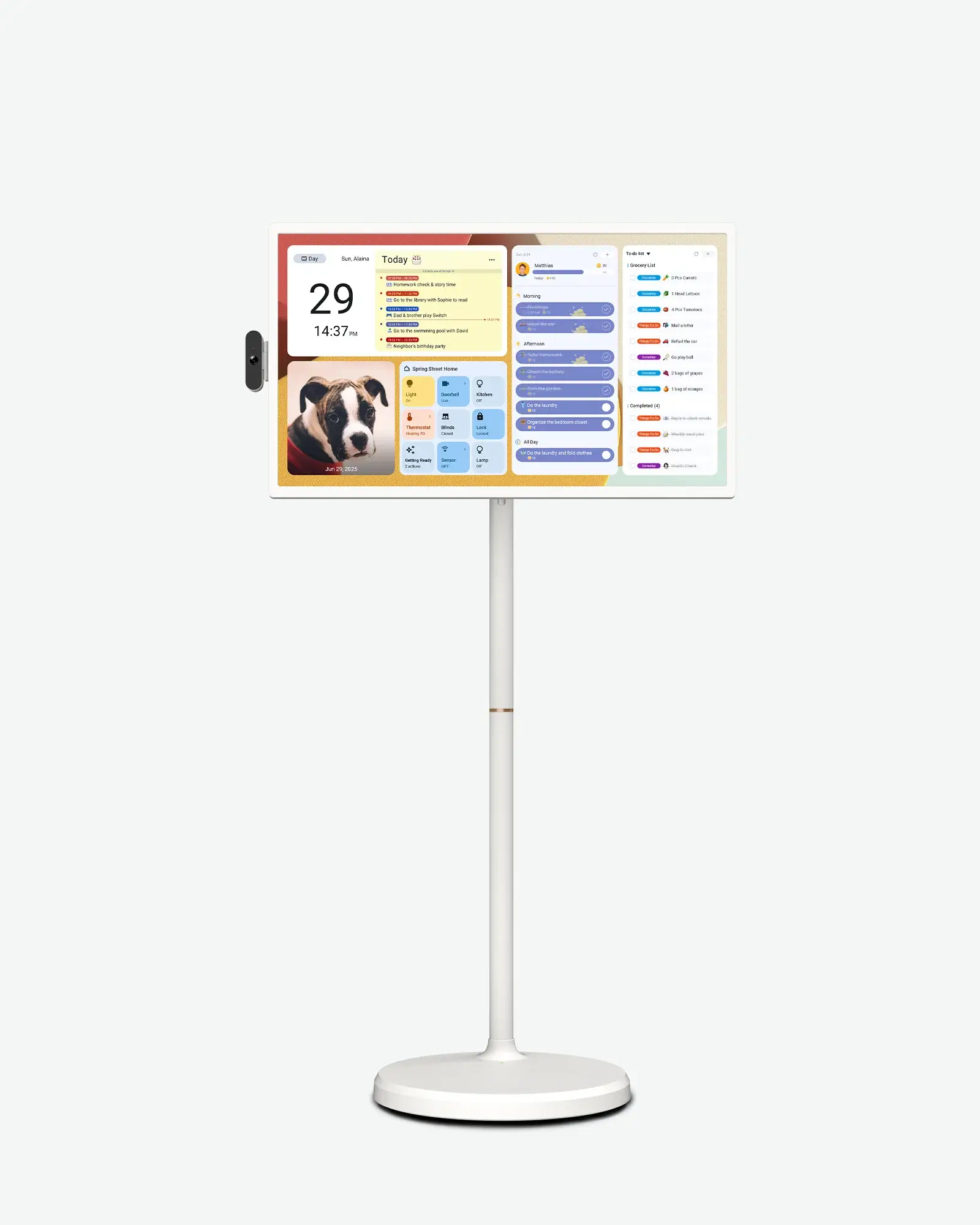
Android OS opens the door to dashboards and widgets. Apolosign highlights panels for calendar, chores, meals, weather, doorbells or cameras via Google Home, and more. The advantage is flexibility: tailor a morning overview, a homework station, or a weekend board that mixes schedules with a grocery list. The tradeoff is light upkeep—signing in to services and occasionally adjusting settings when an account changes.
Widgets for chores, meals, and more are most helpful when you choose a few high‑value tiles, keep them legible, and let the rest live on phones.
Calendar sync: Google and Outlook plus iCloud display
Calendar compatibility determines whether the display mirrors real life. The brand emphasizes Google and Outlook syncing, and offers a path to show iCloud calendars via shared import—useful for mixed‑platform homes.
Google and Outlook sync
Product pages call out direct syncing with Google Calendar and Outlook. Connect the accounts you already use, and shared calendars will appear on the household screen. If you maintain separate personal calendars, keep those private and share only what the group needs—like a family calendar, a school activities feed, or a house chores list.
How iCloud display works
Apolosign’s FAQ says iPhone and Mac users can show iCloud calendars by importing them as a shared calendar. That setup can bring an Apple‑centric schedule onto the board without changing your phone habits. It’s best to treat it as display‑first: edits generally happen in the original calendar app, then flow to the shared view. iCloud shown via a shared calendar import sets realistic expectations for families that mix iOS and Android.
Hardware, sizes, and mounting: pick the right fit
Picking the right size is about reading distance and wall space. Apolosign offers multiple screen sizes, an anti‑glare matte finish, and included mounting hardware with each display. Bigger is easier to read across a room; smaller fits tighter spots and, for the 15.6‑inch, can sit on a desk with the included stand.
Sizes and screens
Official listings show 15.6‑inch, 21.5‑inch, 27‑inch, and a 27‑inch 4K model, all positioned for shared spaces. If you’ll stand within arm’s length—say at a kitchen counter—15.6‑inch or 21.5‑inch usually works. For across‑the‑room visibility in a family room or open kitchen, 27‑inch provides larger text and widget tiles. Models are described with an Anti‑glare matte glass finish to help cut reflections in bright rooms.
Mounting and what’s in the box
In the box, the 21.5‑inch and 27‑inch models include a wall‑mount bracket and power adapter. The 15.6‑inch adds a desktop stand, so you can place it on a counter or desk from day one—15.6‑inch includes a desk stand. If your best location is the fridge, a branded magnetic mount accessory supports the 15.6‑inch and 21.5‑inch models on smooth, flat metal surfaces. For anything textured, curved, or non‑metal, stick with the standard wall mount so the display remains secure.
Before installing, measure the wall area and sightline from where people usually stand. Aim for eye level in the spot where decisions get made—next to the door you use most, or near the dinner table where nightly planning actually happens.
To explore sizes and what comes in the box, visit Apolosign and look for the Digital Calendars lineup.
Set up and sync without fuss
Initial setup should make the shared view useful on day one. The brand provides a mobile app, calendar connections, and a quick way to hide details when company drops by.
Set up your Apolosign digital calendar
Unbox, mount or place the display, and follow on‑screen prompts. Choose Calendar Mode if you want a clean, predictable board to start; you can switch to Android dashboards later. Install the mobile app and sign in so you can add events, chores, and lists from your phone. The app is how you’ll update the board when you’re away. Use the Apolosign App to manage on the go if multiple adults will add items during the week.
Connect accounts and share calendars
Connect Google Calendar and/or Outlook directly so shared family or team calendars appear. If you’re an iPhone household, Import iCloud as shared calendar to display it on the board. Several accounts can feed one display, but that adds permissions and settings to manage—time zones and sharing options are the usual culprits if something doesn’t show. When guests arrive, use Privacy Mode to hide details in a swipe without turning the device off.
Dashboards and customization ideas
Once the basics work, you can shape the screen around your day. Dashboards let you mix the essentials with a few helpful extras, so the view stays legible and relevant.
Design it to fit your day
Start with calendar, routines, and a to‑do list. Add a meal plan tile if it reduces evening chaos, and weather if it regularly changes your morning routine. If you want the board to feel like home, enable Google Photos to rotate family pictures between glances. That combination usually covers the daily decisions without visual overload. If you’re curious, drop in a doorbell or camera view through Google Home—but only if the screen’s location makes that genuinely useful.
Privacy and smart‑home touches
Two small touches make shared spaces easier. First, Privacy Mode hides details in one swipe when neighbors or guests stop by. Second, Use Google Photos as a frame so the board looks welcoming when idle. Voice prompts through Google Assistant can set a quick reminder or timer hands‑free. If you add many widgets, revisit the layout in a week and remove anything people aren’t using—clarity beats variety on a wall display.
Is it worth it? Fit, tradeoffs, and support basics
If you want one place where the household can see and update a shared plan, a dual‑mode display is a credible alternative to sticky notes and text chains. The tradeoff is adding a screen to your space and a bit of setup time. If that’s acceptable, the combination of focused Calendar Mode and flexible Android dashboards makes the device adaptable over time.
Who benefits most
Who gets the most value? Families juggling activities, roommates coordinating chores and bills, micro‑schools or clubs with rotating schedules, and anyone who wants a visible plan near the door. If you dislike tinkering, start in Calendar Mode and keep it simple. If you enjoy tailoring tools, the Android dashboards give you room to experiment without buying a second device.
Support basics: shipping, returns, warranty
Support policies are straightforward: Free US shipping and 30‑day returns per policy help you evaluate fit at home, and a 1‑year limited warranty covers eligible issues. Returns require following the official process and sending items back with original packaging and accessories per the policy page. Software is updated over time, which protects the purchase as features evolve. If you’re ready to compare sizes and finishes, visit Apolosign and look for the Digital Calendars section.